
How to use SophIA in a customised way for a patient’s request?
If your query is related to a specific patient, you should access SophIA via the patient’s account, as:
● SophIA will have access to the patient’s available information;
● it will help you organise and analyse the case more effectively;
● interactions will be saved within that patient’s history.
This allows you to keep all case information organised and linked to the same clinical context.
Usage advice: To ensure SophIA becomes your best partner from the very start, provide context. When starting a new case, try uploading the medical history or previous assessments. Having this reference frame allows SophIA to provide you with much more customised, thorough and useful responses for your decision-making.
You can access the patient’s case in two ways:
Accessing SophIA from an appointment:
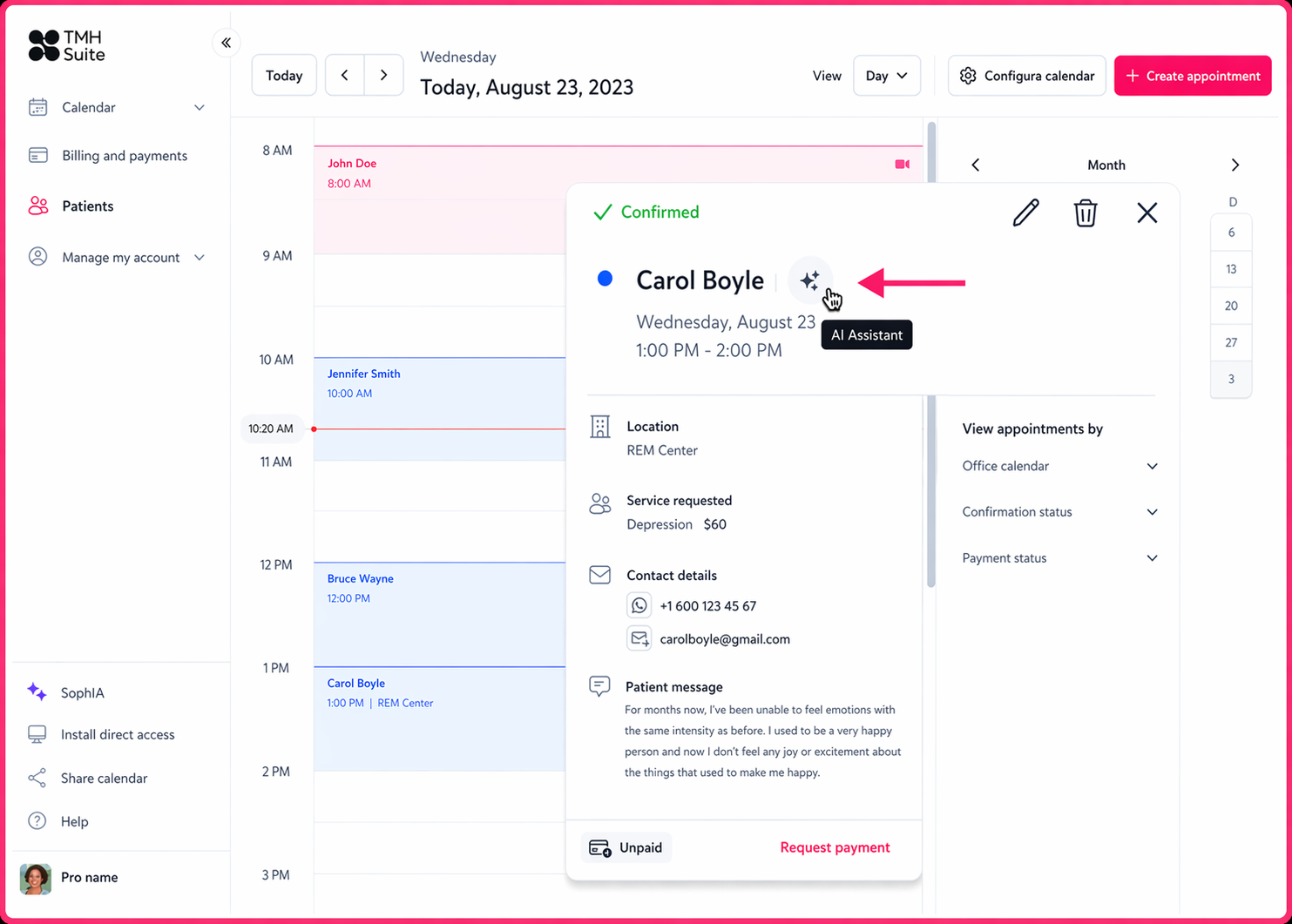
When a patient makes an appointment request, it will appear in your TMH Suite calendar for you to manage. When reviewing the request in the calendar, you will see a star symbol next to the patient’s name. This icon corresponds to SophIA.
By clicking on this symbol, you can access SophIA directly to work with the information relating to that patient.
Accessing SophIA from “Patients”:
If you wish to use SophIA for a specific patient, but the patient has not requested a new appointment and is already saved in your TMH Suite calendar, you can also access the tool from their file.
To do this, go to the “Patients” section within your TMH Suite calendar. There you will find a list of all your patients along with their details.
By clicking on a patient’s row, you will access their personal file. In this section, you can view:
● their patient details;
● the queries made with SophIA relating to that patient;
● their assessments.
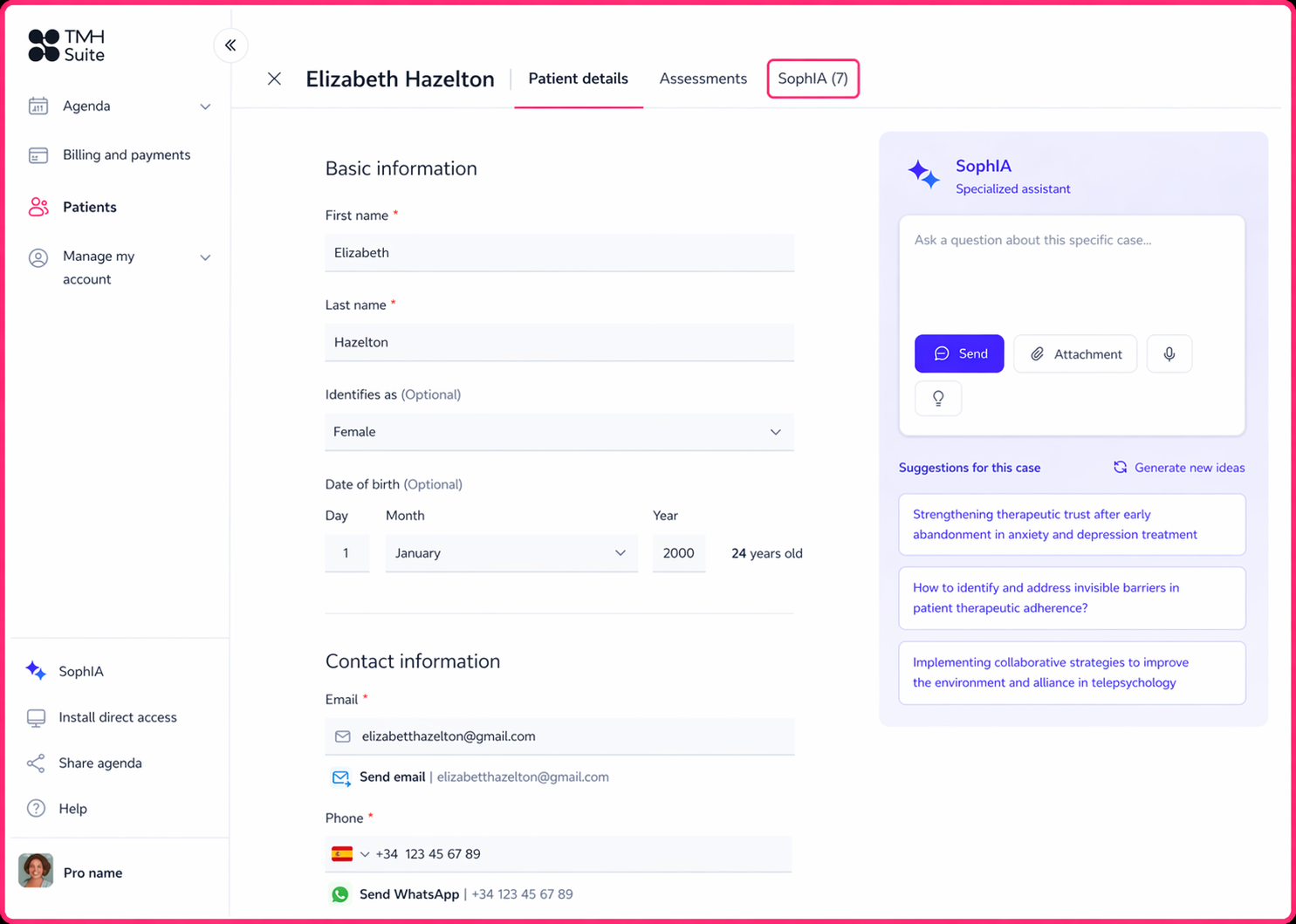
Within the patient’s file, on the right-hand side of the screen, you will find the “AI queries” option, which you can use to make queries relating to that specific patient.
Thus, all interactions will be linked to the patient’s record, hence making it easier to organise clinical information.
For patient-related queries, access the tool via their profile to make use of their information, improve analysis and keep everything organised within the same clinical context.