
How to confirm appointments from your Inbox
From the Inbox, you can confirm pending appointments directly without having to open the full details.
Confirm an appointment
If your account does not have payments enabled, the Confirm button will confirm the appointment directly.
Once confirmed,
● the appointment automatically changes to Managed status;
● a confirmation message will be displayed.
Confirm an appointment and request payment
If your account has payments enabled, the Confirm button will display additional options:
● Confirm appointment
● Confirm and request payment
When you select the option to request payment,
- the appointment is automatically confirmed;
- the request changes to Managed status;
- the payment request process begins.
When the payment request is sent successfully, you will return to the Inbox with a confirmation message.
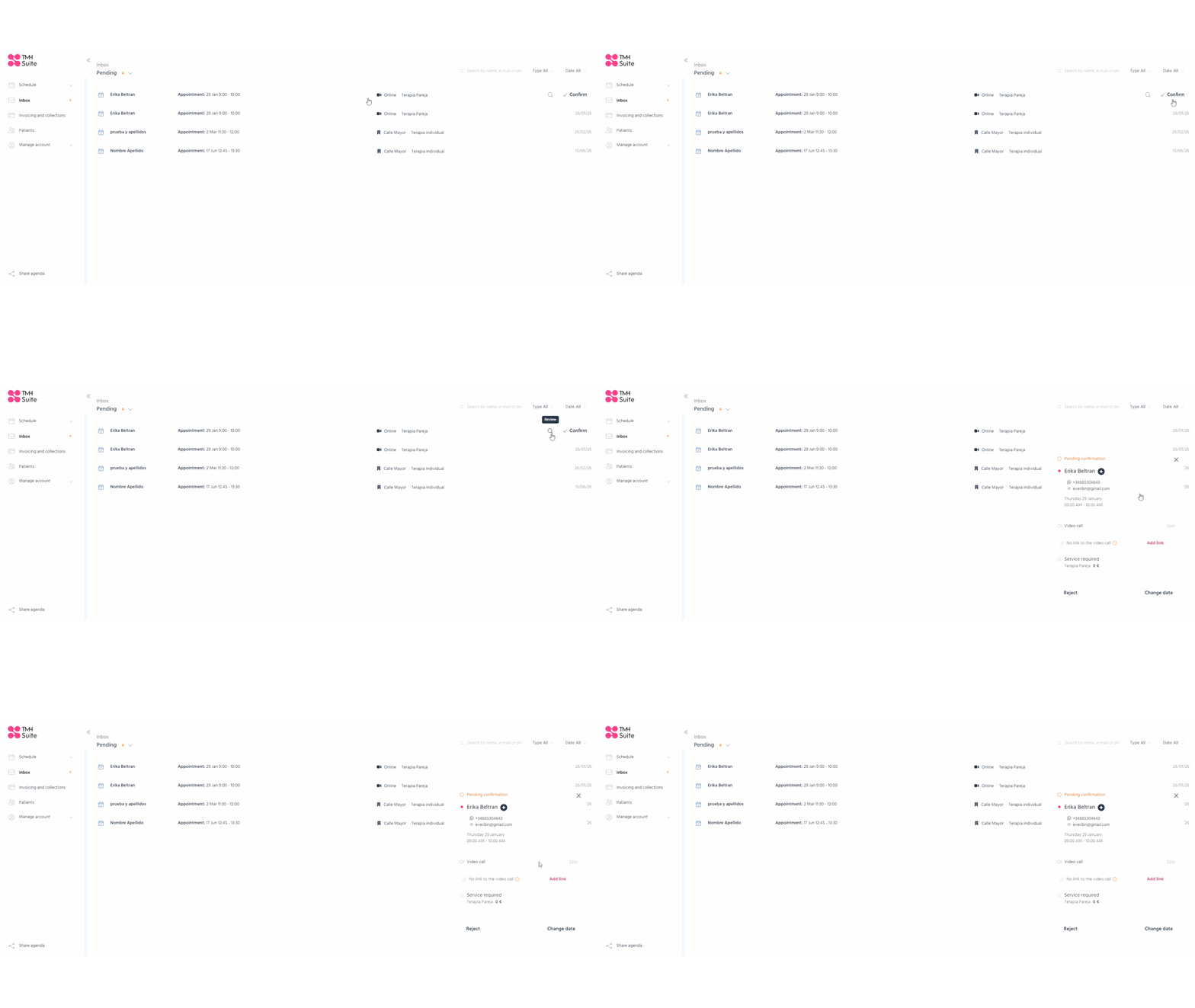
Review an appointment before confirming it
The Review action allows you to open the appointment’s full details before managing it.
On mobile phone
The Review button is displayed.
On desktop
A magnifying glass icon is displayed.
Hovering over the icon will display the text:
● Review
What happens after confirming an appointment
Once confirmed,
● the appointment automatically disappears from the Pending view;
● the status changes to Managed;
● the inbox updates in real time.
This ensures the view is always up to date without having to refresh the page.