
How do I set up my calendar to offer face-to-face and online appointments?
In TMH Suite, you can offer face-to-face appointments, online appointments, or both. For patients to be able to request appointments through your MundoPsicologos profile, you should review the centre type, the service format and the available hours.
1. Review the centre type
Go to Manage account → My business → Centres. Open the centre you want to review or create a new one, and check its type:
Centre type | Services it can offer |
Online | Online services only. |
Face-to-face | Face-to-face and online services, depending on the format you configure for each service. |
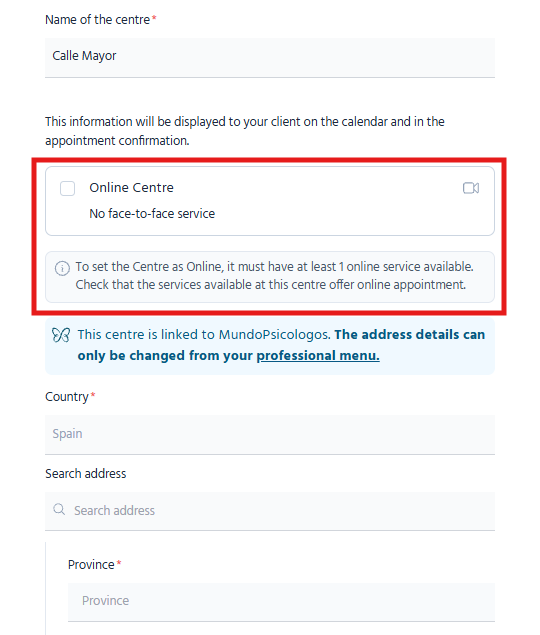
An face-to-face centre can also offer online appointments. Therefore, if you want to offer face-to-face appointments only at a specific centre, you should also review the services assigned to that centre.
2. Configure the service format and duration
Go to Manage account→ My business→ Services. Open an existing service or create a new one, and check its name, price, duration and associated centres.
Under Session type, select how you want to offer the service:
Face-to-face: the session takes place at a centre, with its address.
Online: the session takes place by video call.
Face-to-face and online: the patient can choose between the two formats.
Enable Service available in public calendar so that patients can select the service when booking, and save the changes.
The appointment duration depends on the service selected. For example, if you set up “Individual session” with a duration of 60 minutes, the appointment will last 60 minutes when the patient selects this service.
To offer Face-to-face appointments only at a centre
Configure the centre as Face-to-face.
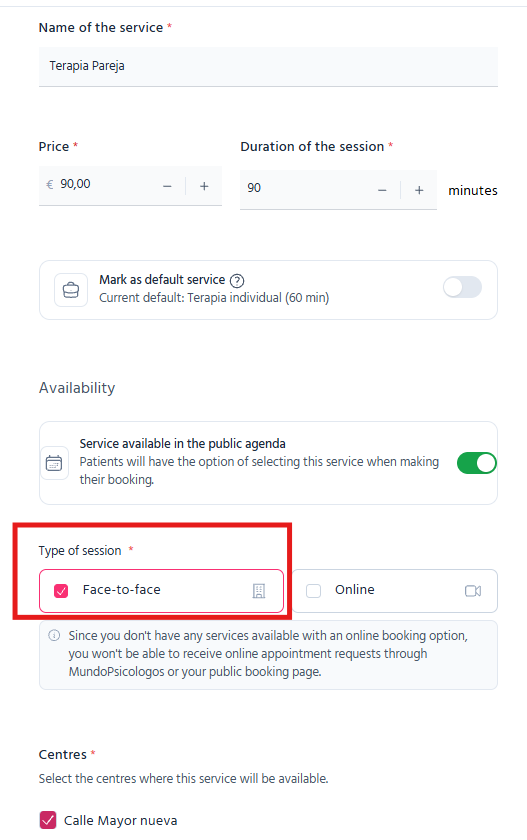
Make sure that all services assigned to that centre are set to Face-to-face only, with the online option disabled.
3. Set the available hours and services
Go to Calendar → Set up calendar and review the calendar for each centre:
Make sure it is enabled.
Under Hours, click on the pencil icon to select the days and time slots when you are available. Save the changes.
Under Services, click on the pencil icon and select the services that will be available in that calendar.
If All services is displayed, make sure you want to offer all of them during those hours.
Centres identified with the MundoPsicologos butterfly logo are linked to your profile. Pay particular attention to their opening hours and services, as these are reflected in the appointment options your patients see.
4. Check the available hours when offering both formats
If a service is set to Face-to-face and online and is offered through the same calendar, both formats use the availability configured in that calendar.
For example, if “Individual session” lasts 60 minutes and is available on Mondays from 4.00 p.m. to 8.00 p.m., the patient can request an face-to-face or online appointment during that time slot.
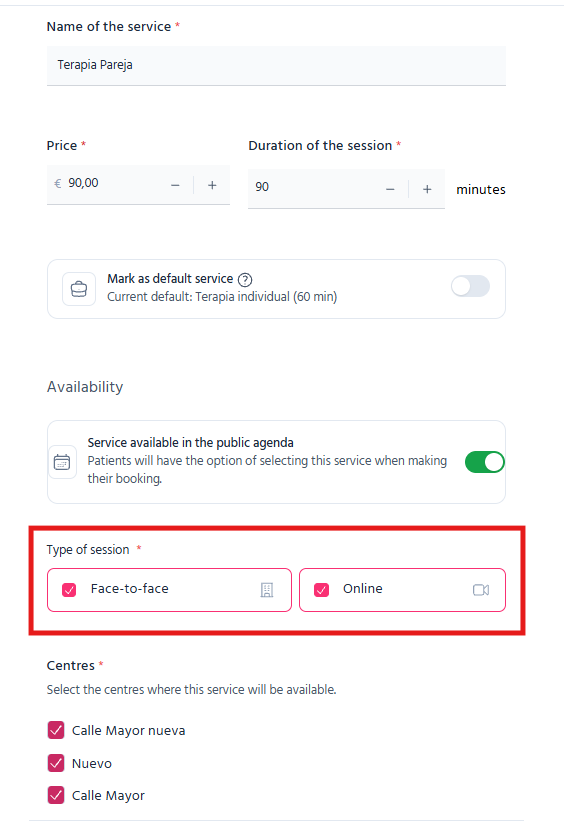
Selecting both formats does not create two separate schedules. Schedules can be reviewed and adjusted under Set up calendar.
5. Check the result on your MundoPsicologos profile
Open your public profile and check the booking calendar:
Under Face-to-face, check the centre and its address.
Under Online, make sure the video consultation option is displayed if you offer it.
Select each service and check its duration and available times.
If a service is missing or a format you do not want to offer is displayed, check the centre type, service format, associated centres, visibility and services included in the calendar.
Please note
Face-to-face only: face-to-face centre with all its services set to face-to-face only.
Online centre: offers online services only.
Both formats: an face-to-face centre can offer both formats, depending on the services configured. The same service in the same calendar shares the same availability for both formats.
To receive requests: make sure the service is visible and included in an enabled calendar with defined hours.
If you need help reviewing your settings, you can contact us via the TMH Suite chat.