
How to create and manage appointments in the TMH Suite agenda
Managing your agenda in TMH Suite is simple. Whether you're scheduling a regular session or offering a free appointment, the platform provides all the tools you need. Follow the step-by-step guide below to get started.
Create an appointment in the agenda
- Log in to TMH Suite
Access your account from your browser using your log-in details.
- Go to “My schedule”
You’ll find this section in the side menu.
- Click on “Create appointment”
A form will open for you to set up a new event.
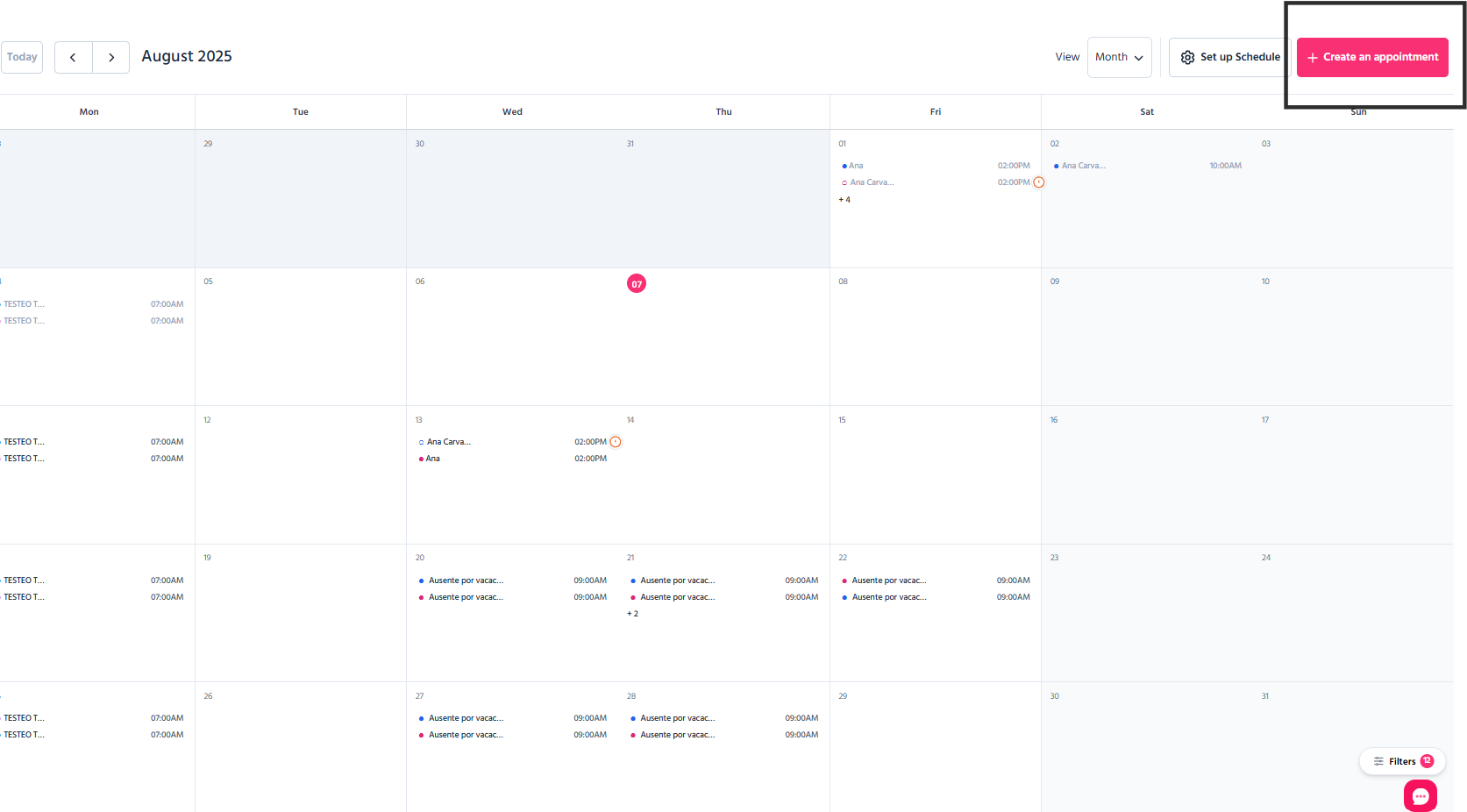
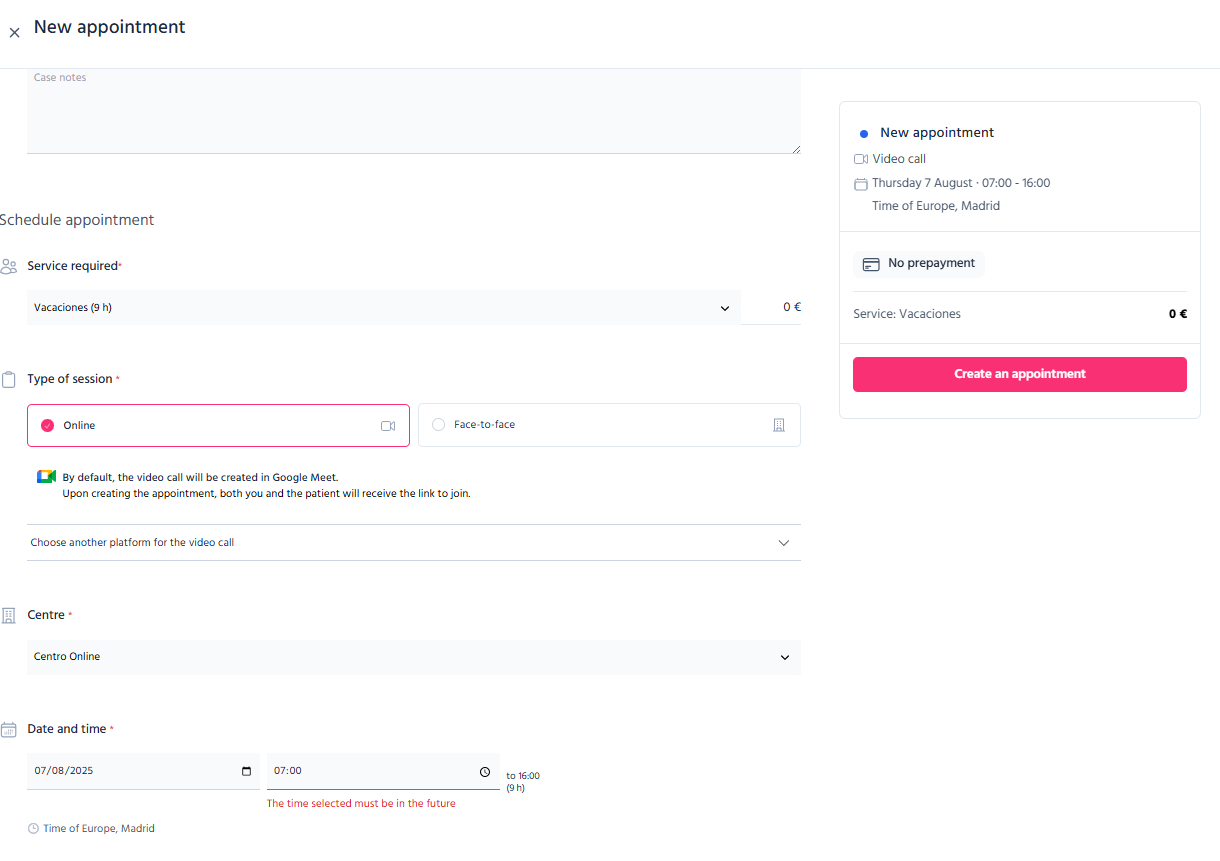
4. Complete the appointment details
Enter the following information:
- Date and time
- Patient's name (you can also select a contact already saved in the patient list)
- Session type
- Service required
- Any other information
5. Save the appointment
Click on “Create appointment” to add it to your calendar.
It will appear in your diary, and you can modify or manage it at any time.
⚠️ When you schedule an appointment, the system takes the time difference into account, so you don’t have to worry about it.
This ensures that both you and your patient connect at the correct time without any confusion.
Create a free appointment
Free sessions are ideal for first-time consultations, special patients, or promotional offers. Here’s how to set them up:
1. Create a zero-price service
- Got to "Manage account" > "My business" > "Services" > "New service".
- In the Price field, enter 0.
- Click “Create service” to save.
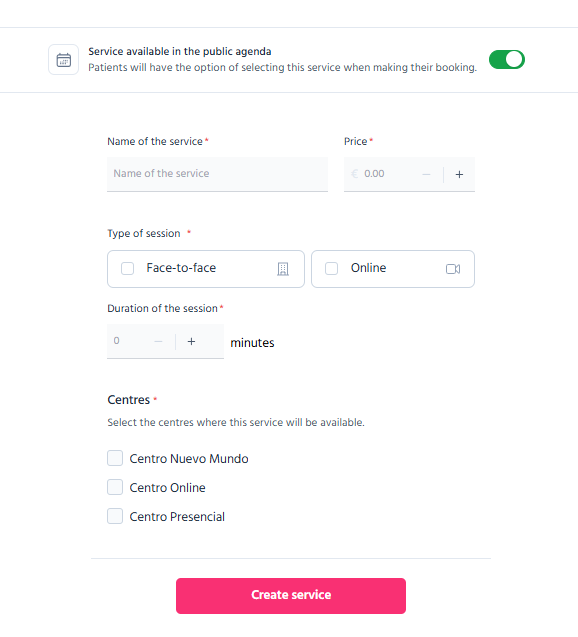
⚠️If you want to modify a service you’ve already created, go to "Manage account" > "My business" > "Services", select the service, and you can update the price, duration, session type, or any other details as needed.
2. Define your visibility
- If you want patients to book this service from your public calendar, keep the service visible.
- If you prefer to manage it internally, turn off the option to display it publicly in the "Available for booking" column.

3. Schedule your free appointment
When creating a new appointment, select the free service you just set up. The appointment will be registered at no charge.
How can I cancel or modify an appointment?
Modifying or cancelling an Appointment on TMH Suite is very easy:
- Go to your Schedule.
- Select the relevant appointment to be changed.
You’ll see two icons:
✏️ The pencil icon is to modify the appointment (time, length, etc)
🗑️The bin icon is to cancel the appointment.
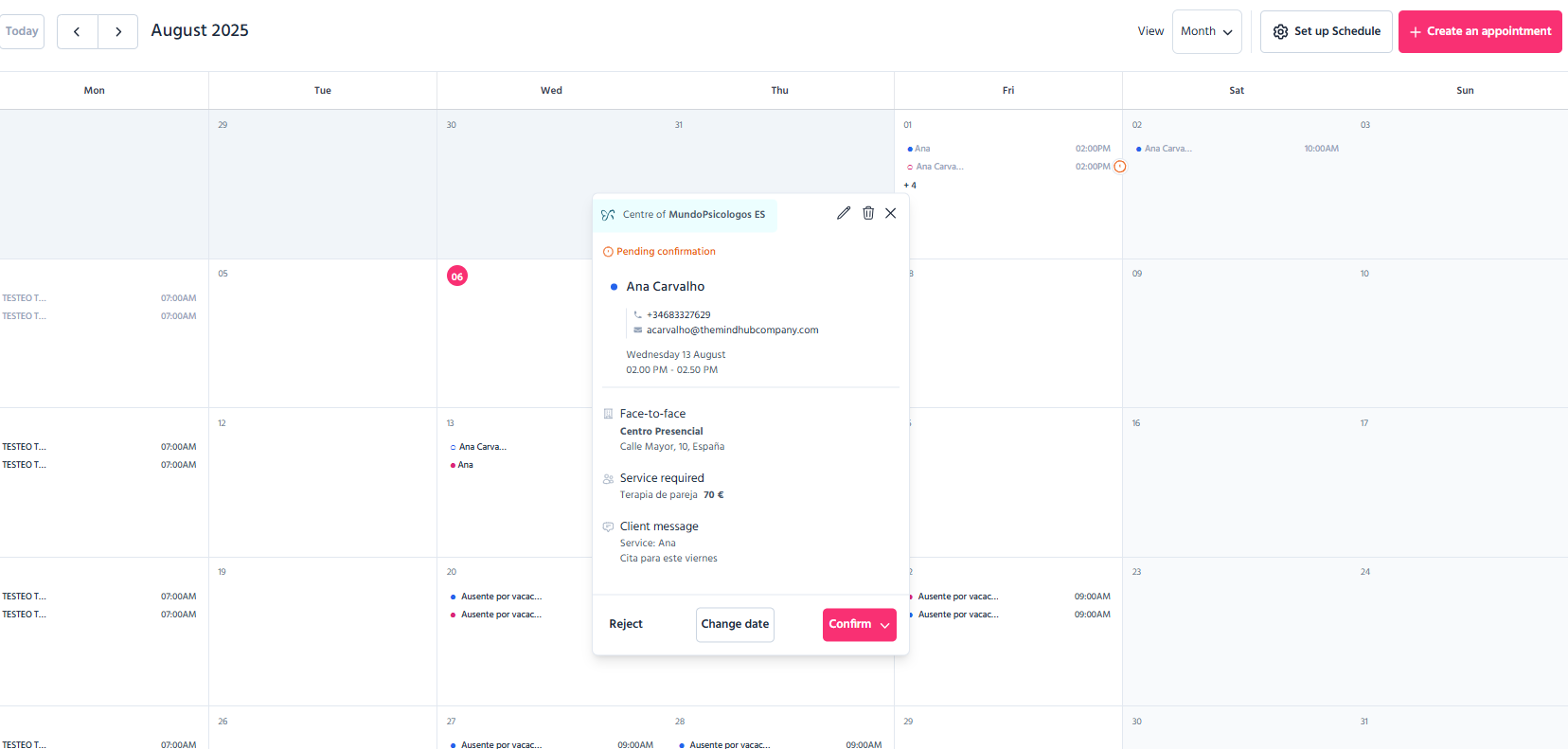
⚠️ Note: If you cancel an appointment, it will automatically be deleted from your calendar and that slot won't be available for the patient.
How to confirm or modify an appointment?
Within TMH Suite, you can manage your pending appointments with ease. By default, appointments originating from external portals or your public calendar require manual confirmation; however, this setting may be adjusted according to your preference.
Automatic Appointment Confirmation
Should you wish to streamline your calendar, you may activate the automatic confirmation function. This removes the requirement to manually accept each appointment. Once enabled, appointments will be confirmed automatically, and the corresponding time slot will be secured in your calendar.
⚠️ How to enable this feature?
- Go to ‘Schedule’ > ‘Set up Schedule’.
- Activate the ‘Automatic appointment confirmation’ option.
- That’s it! Incoming appointments will be confirmed immediately, without further action on your part.
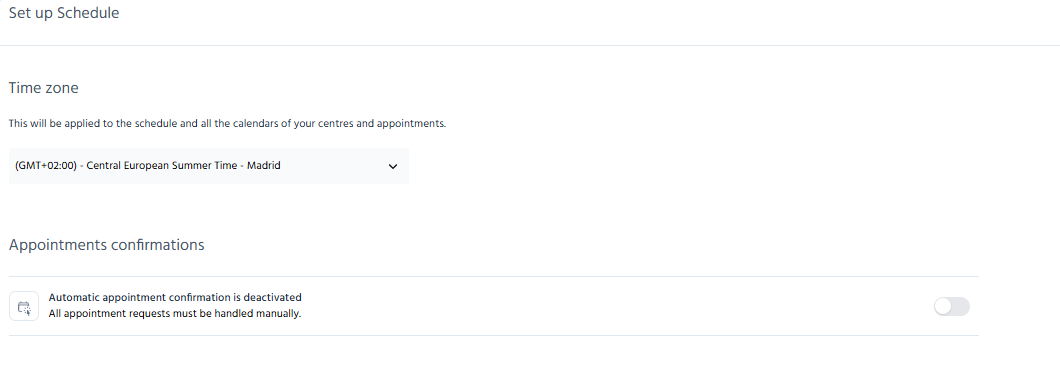
This function is available only for:
- Appointments from MundoPsicologos (for users with a Premium Plan)
- Appointments via the public calendar (for users with a Premium TMH Suite Plan)
Prefer to confirm or reject appointments manually?
If you choose not to enable this option, you may continue to review your pending appointments via the calendar or in th "InBox":
- Apply the ‘Confirmation status’ filter and select ‘Pending’.
- From there, you may confirm or decline appointments as appropriate.
I can’t confirm or charge for an appointment
You’ll only be able to confirm or charge for an appointment if it’s scheduled for a future date.
⚠️ The prepayment feature is exclusively available with the Premium Plan.
Subscribe here to unlock all its benefits.
If you have any questions, please visit the Help Center or write to us in the chat. Thank you for trusting TMH Suite.