
How to configure scoring and publish a questionnaire
The Scoring tab lets you organise how your questionnaire’s results are calculated. Review it before publishing the questionnaire for use in a case.
Configure the results
- Open the questionnaire from Settings → Questionnaires and go to Scoring.
- If you need partial scores, click Add subscale and assign a Label. Subscales are optional.
- Review Aggregation, Polarity, Range: minimum and Range: maximum. Polarity indicates how to interpret an increase in the score; for example, the negative option associates a higher score with a worse condition.
- If appropriate, set a Cut-off point and use Add band to define severity bands.
- In Calculation rules, choose what happens If there are blank responses. Enable Calculate change between administrations if needed; for custom questionnaires, the difference between scores is calculated.
- Return to Questions and check which questions contribute to each result, which use reverse scoring and what weight they have.
Save, publish and use it in a case
- Click Save draft to keep your changes.
- When you have finished reviewing it, click Publish.
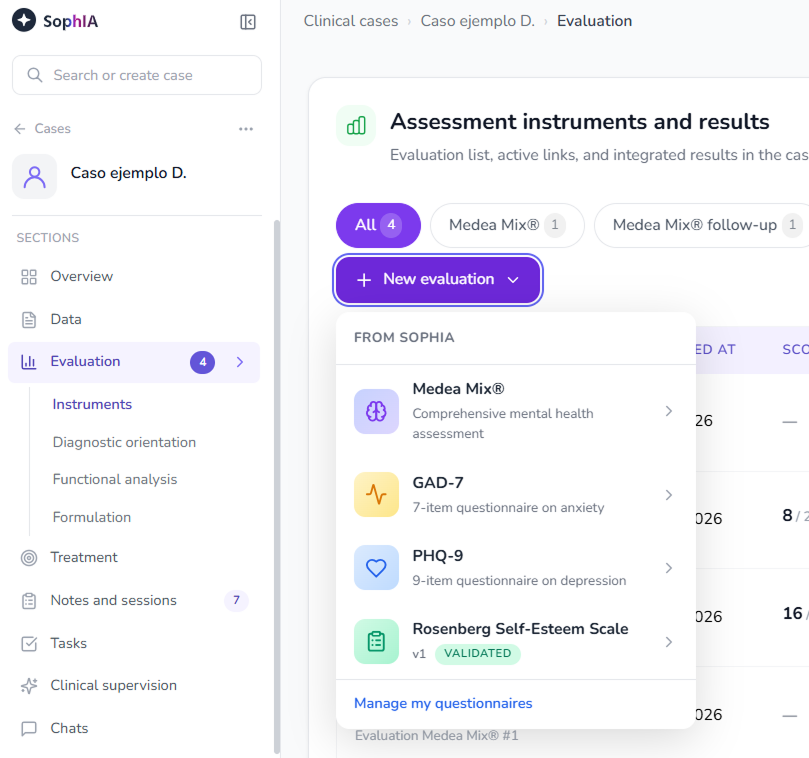
- Open the case and go to Assessment → Instruments.
- Click New assessment, select your questionnaire and continue sending it as you would any other assessment.
- Once it is completed, view its results from Assessment.
The rules you configure determine your questionnaire’s calculations; publishing it does not mean that its scores or cut-off points are validated.